 Panda ELDFMCSA
Home / Fleet tracking
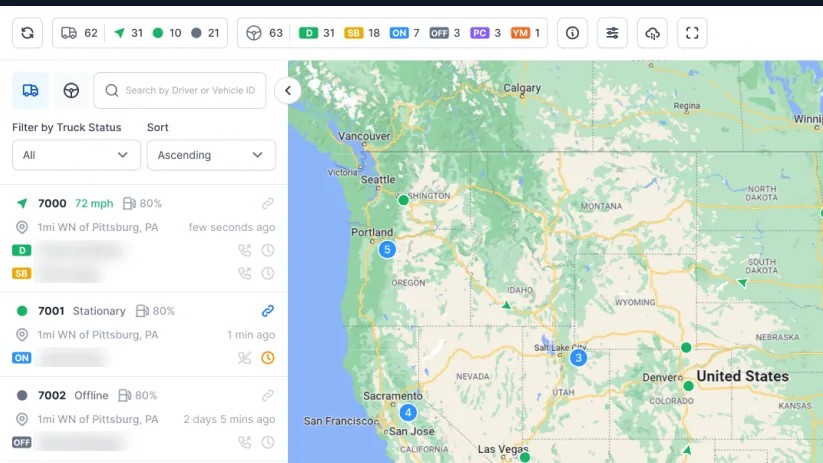
One screen, the whole fleet
Duty status, location, fuel level and speed for every vehicle, with remaining hours beside each driver and anyone already in violation pulled to the top of the list.
Violations first, always
Sorting by unit number is how a problem gets missed. The list opens on whoever needs attention.
| Unit | Status | Drive | Shift | Cycle | Location |
|---|---|---|---|---|---|
| 104 | Violation | 0:00 | 0:00 | 6:15 | I-80 near Elko, NV |
| 218 | Driving | 3:18 | 5:02 | 24:40 | I-70 near Hays, KS |
| 311 | On duty | 8:45 | 10:20 | 41:05 | Dock, Joliet, IL |
| 402 | Sleeper | 11:00 | 14:00 | 33:30 | TA, Ontario, CA |
| 417 | Off duty | 11:00 | 14:00 | 52:10 | Yard, Morganville, NJ |
What each truck reports
Duty status
Driving, on duty, off duty or sleeper berth, updating as the driver changes it.
Location
Where the vehicle is, on the map and as a place name in the list.
Fuel level
Read from the vehicle, so a fuel stop can be planned rather than discovered.
Speed
Current road speed alongside the rest of the vehicle's state.
Remaining hours
Drive, shift and cycle time left, next to the driver rather than two clicks away.
Violations
Anyone in violation, or approaching one, surfaced without going looking.
Filters that change a route
A map that only shows trucks is a toy. These are the layers a dispatcher actually turns on.
- 01
Traffic
Current conditions on the road ahead, not an average of last Tuesday.
- 02
Weigh stations
Where the scales are, before the truck is on top of one.
- 03
CAT Scales
Certified scales along the route for a legal weight check.
- 04
Truck stops
Where a driver can actually park, which is the entire question once the clock runs low.
- 05
Weather
Rain and snow layers, so a route gets planned around a storm rather than into one.
- 06
Vehicle grouping
Filter the map to a group of trucks rather than the whole fleet at once.
Stop answering where-is-my-load calls
A broker or shipper can be given a live location for a specific vehicle. They watch it themselves, and the phone stops ringing. It is the smallest feature on this page and the one dispatchers notice first.
Beyond the map
Inspection reports
Drivers file DVIRs in the app; the office reads them in the portal. The February 2026 eDVIR final rule confirmed these may be created, signed and kept electronically.
Driver messaging
Messages, images and files sent to drivers inside the app they already have open.
Scanned documents
Bills of lading and receipts scanned from the cab, arriving without a second app or a photo thread.
Records and certification
Every duty change, edit and certification, which is where a compliance review starts if one follows.
See your own trucks on it
A demo runs against a real fleet, not a canned account. Tell us how many trucks and what you are running now.